
Your first state machine
Give the moving object two modes, hand off when its work finishes, and watch the arrival state turn it green.
On this page
The cube from the last tutorial reaches the marker, reports Succeeded, and then the graph has nothing more to say about it. Here it gets two modes, so arriving becomes a moment the graph can act on.
The thing this replaces
Section titled “The thing this replaces”Land on the Platformer enemy from above and it stops moving, stops hurting you, and slumps. That is a mode change, and EnemyStateMachine.bqbehavior holds it as two states with one transition between them. Written by hand it becomes an isDefeated bool that movement reads one way and the sprite code reads a frame later.
A state machine holds one mode at a time and owns the moment it changes. Your components keep owning what each mode means.
When you would reach for this
Section titled “When you would reach for this”- The actor has phases that persist: patrolling, chasing, defeated, or a round moving from countdown to play.
- Something must happen exactly once at the boundary, like playing a stagger animation on the way in.
- You want an answer that holds until a real event changes it, instead of one the tree re-decides the moment its current step finishes.
Prepare the actor
Section titled “Prepare the actor”Finish your first behavior tree, or add its GuardMotor component, the Guard cube, the Destination parent, and the raised marker to your scene.
Duplicate Guard and name the copy State Guard. Remove the copied Behavior Agent and the copied provider component, keep GuardMotor, return the copy to the starting position, and assign State Guard’s own Mesh Renderer to Indicator. Run only the new machine on State Guard while you work through this.
Substituting your own component? You need two members: one update method that reaches a real finish, and one immediate method with a visible effect for the arrival state to fire.
Build the machine
Section titled “Build the machine”Here is the finished machine, so you know what you are aiming at. Both states, one transition, and the entry marker on the state that runs first.
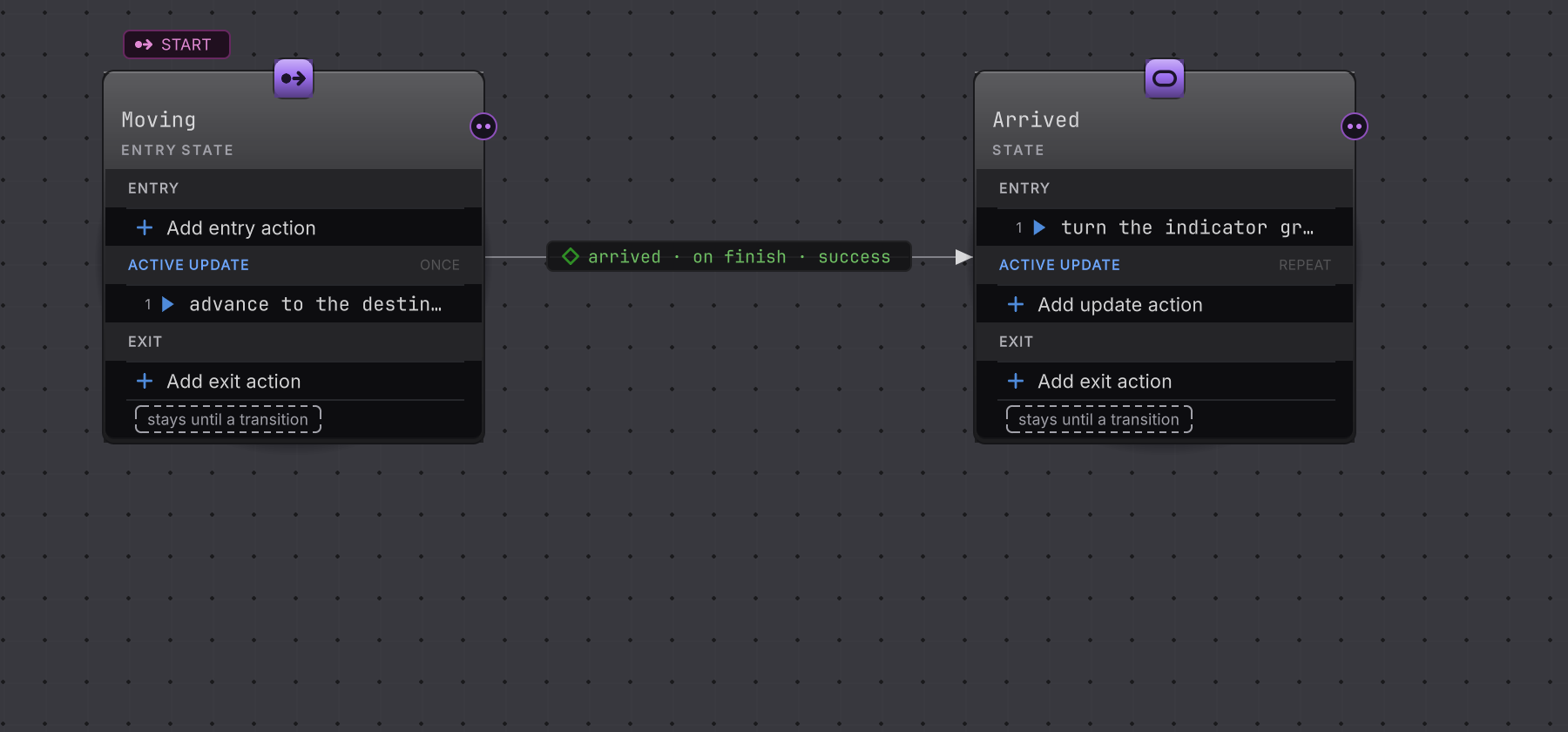
GuardArrival once every step below is done. The transition label spells out its own rule: on finish, success.-
Choose Assets > Create > Behavior & State > State Machine and name the graph
GuardArrival. -
Open
GuardArrival.bqbehaviorand leave the toolbar on Static. The canvas shows No states yet. -
Choose + New state, enter
Movingin name (required), and create the state. The first state you create becomes the entry state. -
Double-click empty canvas, enter
Arrived, and create the second state.
Bind Moving to the motor
Section titled “Bind Moving to the motor”-
Select Moving. Under Active Update choose + Add update action, then Method.
-
Select the new action. In Target leave Mode on Agent and Resolve on Self, then choose
GuardMotorin the Component row. -
In Member choose Change and pick
Advance(float speed). Set thespeedargument to the Constant2. -
In Result set Node result to Test, operator
=, compared against the Boolean Constanttrue, with When true on running and When false on succeeded. -
Back on the Moving state, set Active Update > Lifetime to Once.
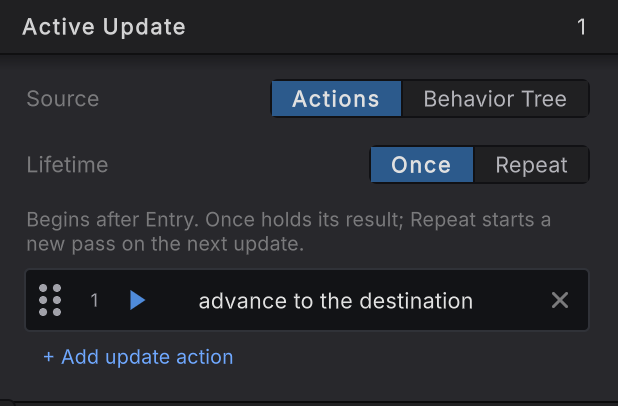
Once means the state keeps the result its action finished with, so the transition can read that Succeeded and fire. Repeat starts a fresh pass on the next update, so the finished result is gone before the transition ever sees it.
Give Arrived something to do
Section titled “Give Arrived something to do”-
Select Arrived. Under Entry choose + Add entry action, then Message.
-
Set its Target to Agent, Self, component
GuardMotor, and choose theShowArrived()row in Member.
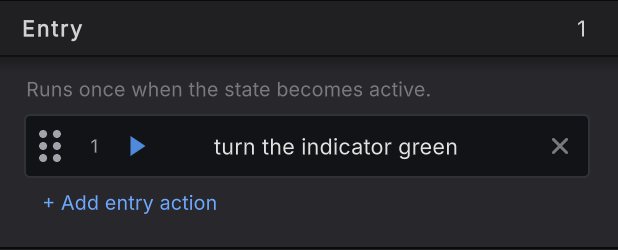
Arrived runs one Message on entry. The card shows the node’s name, and the component owns what turning green means.Message fires one void call and reports Succeeded once the invocation is accepted. The material change belongs to your component, where it always belonged.
Connect the handoff
Section titled “Connect the handoff”-
On the Moving card, drag the control whose tooltip reads Drag to add transition onto Arrived. The canvas hint reads Drop on a state · Esc cancels while you drag.
-
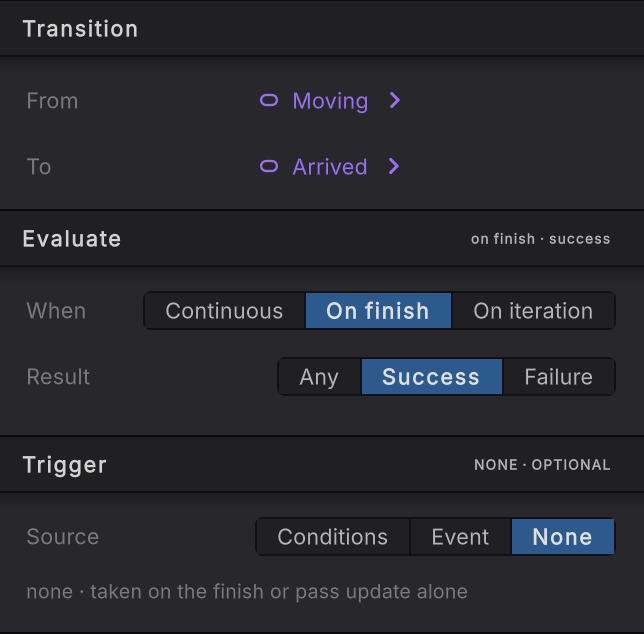
Select the new transition. In Evaluate set When to On finish and Result to Success.
-
In Trigger set Source to None. A completed successful Active Update is the entire trigger, so there is no predicate to write.
-
Name the two action nodes after what they do:
advance to the destinationon Moving, andturn the indicator greenon Arrived. Select an action, then click its name on the identity header at the top of the right rail, or press F2, and the state cards and the Live view read as sentences instead of node kinds. -
Leave Kind > When taken on Switch. Clear anything validation reports, then press Save (Cmd/Ctrl+S): autosave writes the graph file only, and Save imports it and regenerates the member provider. Wait for compilation.
-
Select State Guard, add a Behavior Agent, assign
GuardArrivalto Graph, choose Update for Update Mode, then attach the provider generated in this graph’s own GUID folder and assign it to Member Provider Component. Leave Member References empty. -
Give the Game view focus and enter Play Mode.
How it decides
Section titled “How it decides”A state owns four moments, and the transition reads the third one.
Lifecycle
- Enter
- Entry actions run once as the state becomes active. Arrived turns the cube green here.
- Active
- Active Update runs the action group. With Lifetime on Once, its result is held instead of being replaced next update.
- Exit
- Exit actions run once on the way out. A Switch cancels and runs Exit; a Push suspends without it.
- Finished
- On finish plus Success reads the held Succeeded result and takes the transition. Arrived becomes the active mode on the next machine update.
Where the tree fits
Section titled “Where the tree fits”Moving runs one action. A state can instead run a whole behavior tree while it is active, which is how the Platformer enemy keeps a patrol plan inside a patrolling mode. Mode switch with an inner tree shows that shape on a real graph.
When it goes wrong
| Symptom | Check | Fix |
|---|---|---|
| State Guard never moves. | Read its GuardMotor Destination, the speed argument, the Graph field, and Member Provider Component. | Fill whichever one is empty, then confirm the provider came from this graph folder. |
| Moving stays Running at the destination. | Compare what Advance returns near the marker against Stop Distance. | Widen Stop Distance, or map the returned value the way your method really behaves. |
| Moving succeeds and Arrived never activates. | Read Lifetime on Moving, then the transition Evaluate and Trigger cards. | Set Lifetime to Once, When to On finish, Result to Success, and Source to None. |
| Arrived activates and the cube stays gray. | Look at the Indicator field on State Guard and the Entry action target. | Assign State Guard's own Mesh Renderer and bind ShowArrived on Agent and Self. |
| The machine starts in Arrived. | Select Moving and read the Entry state toggle in the State card. | Turn Entry state on for Moving. |
| Live opens the wrong graph. | Count the Behavior Agent components on the selected object. | Select the exact agent that runs GuardArrival. |
| Initialization reports a provider mismatch. | Compare the attached provider's GUID folder with this graph's GUID. | Remove the provider copied from the tree tutorial and attach the one GuardArrival generated. |
- Your first binding: read a property, wait for an event, send a message.
- Platformer chapter: the enemy whose two modes this tutorial copies.
- Watch it run: Live colors and the values behind each decision.
- State machine controls reference: every control on the transition rail.