
Watch it run
Attach Live to one running object, read the status colors, open its values, pause that follower alone, and find where progress stopped.
On this page
Static answers “what did I author”. Live answers “what is this one instance doing right now”. The second question is the one you have at 2am when an enemy will not chase.
The thing this replaces
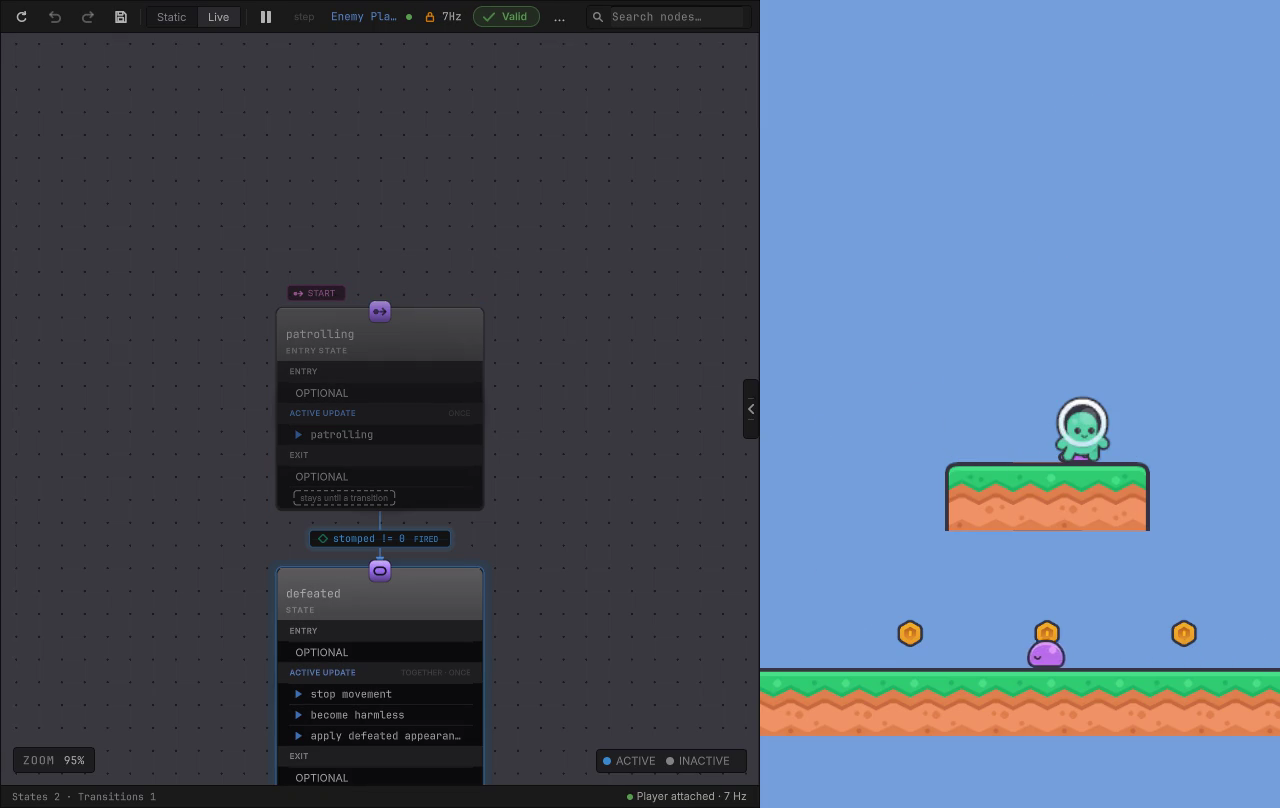
Section titled “The thing this replaces”Two enemies patrol the Platformer scene from two different graphs, and one of them stopped walking. A log line tells you the method ran. It does not tell you which branch asked for it, what the condition above it compared, or whether that particular agent is even ticking. Live shows the running graph for the instance you selected, colored by what each node reported in the latest tick.
When you would reach for this
Section titled “When you would reach for this”- One agent out of a crowd behaves differently and the others are fine.
- A branch runs when you expected a different one, and you want to see the value it compared.
- An action holds Running longer than it should and you need to know whether it is waiting on your code or on the graph.
Attach to one running object
Section titled “Attach to one running object”This uses the Platformer sample, and the same steps work on any GameObject in your own scene.
-
Open
Platformer.unityand press Play. -
Select Enemy Platform in the Hierarchy, then click the Behavior Agent component whose Graph reads
EnemyPatrolso that component is the active selection. This object carries two agents, one per graph, and the editor attaches only when the selection names exactly one. -
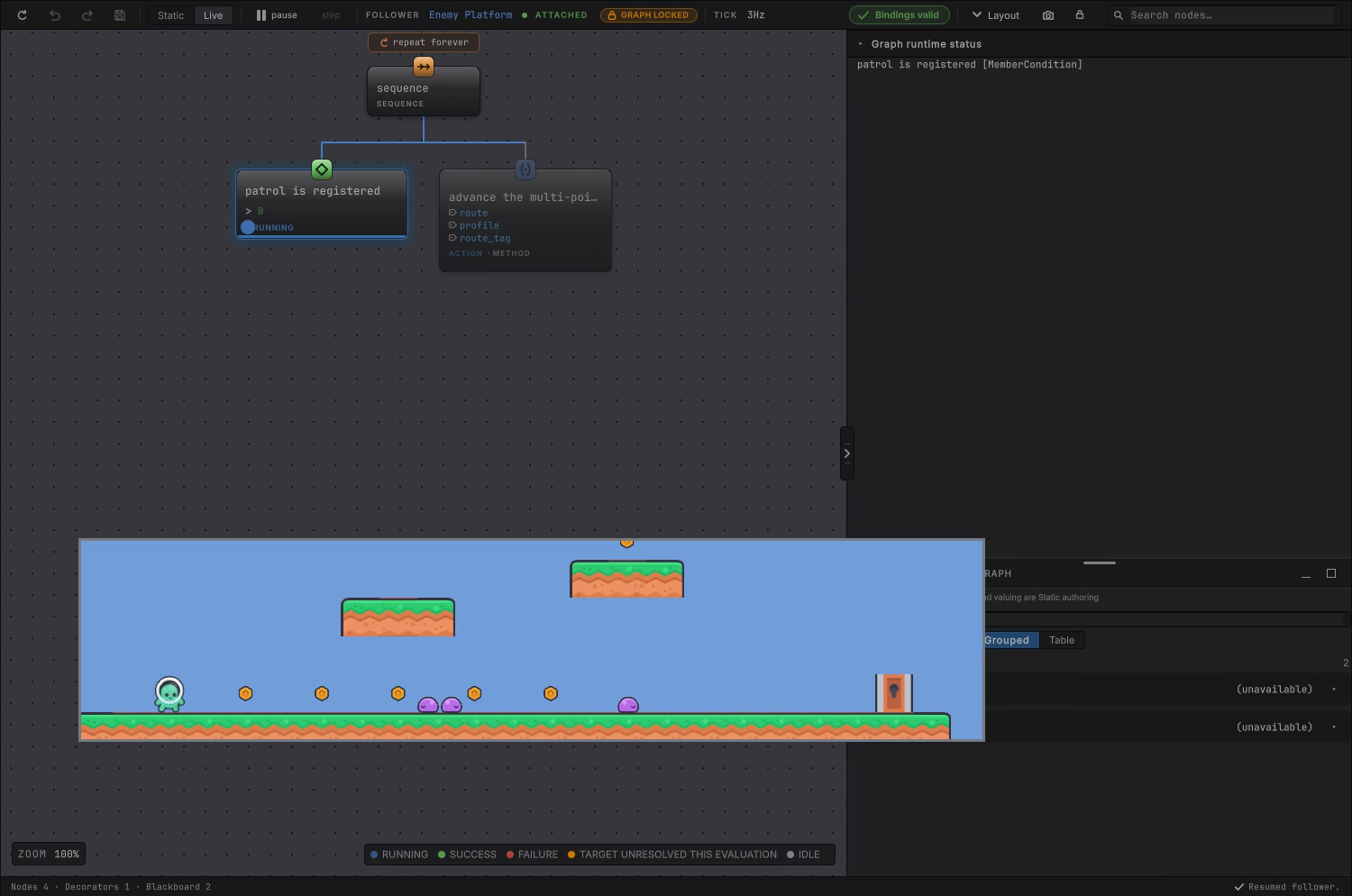
The editor opens that graph in Live and the toolbar names the follower it is attached to, meaning the one running agent you are now watching. Attachment is exact: the editor does not search parents, children, or a convenient sibling when the selection is ambiguous.
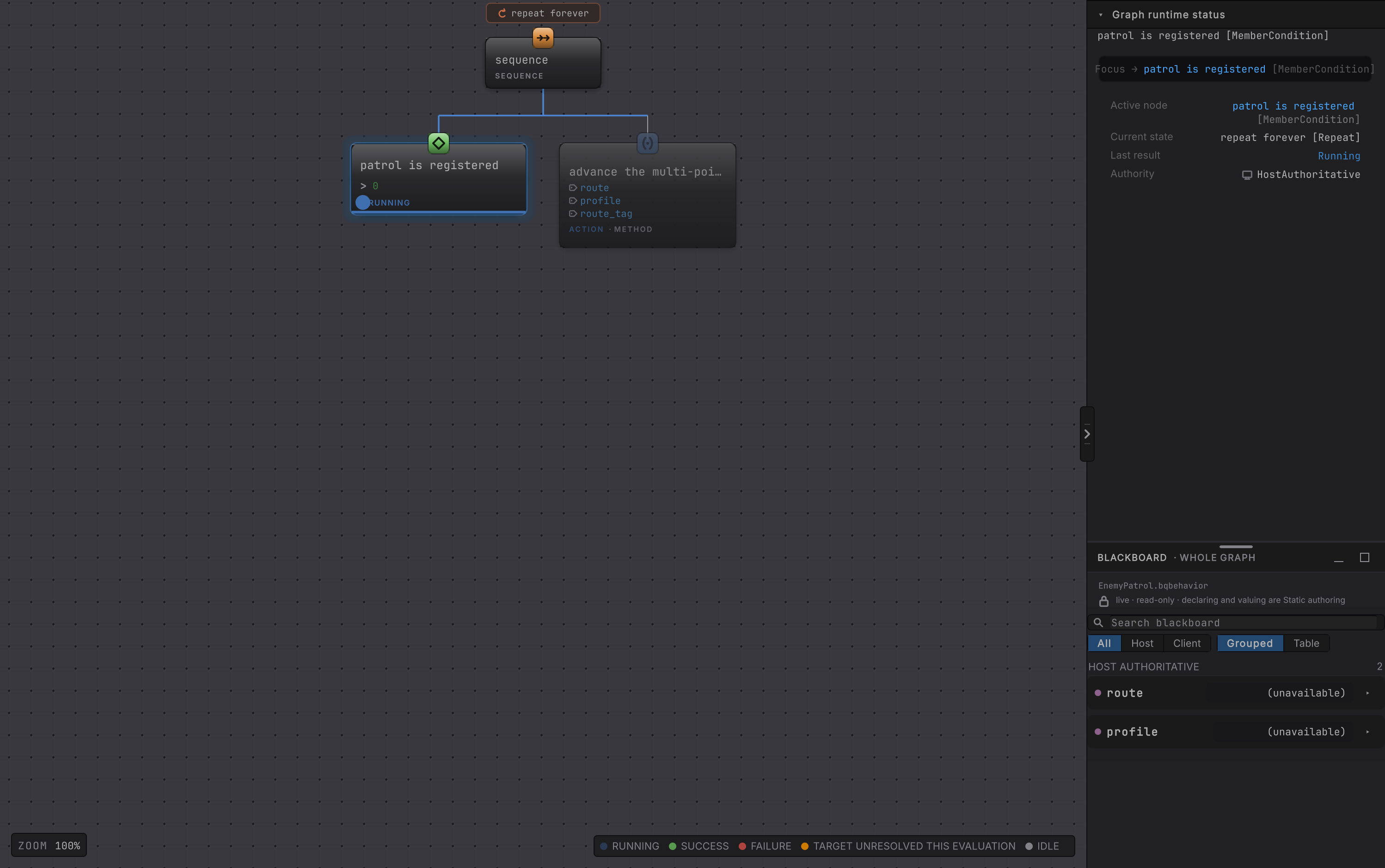
EnemyPatrol running on Enemy Platform. Graph runtime status names the node that executed in the latest tick, so you never have to guess which color you are reading.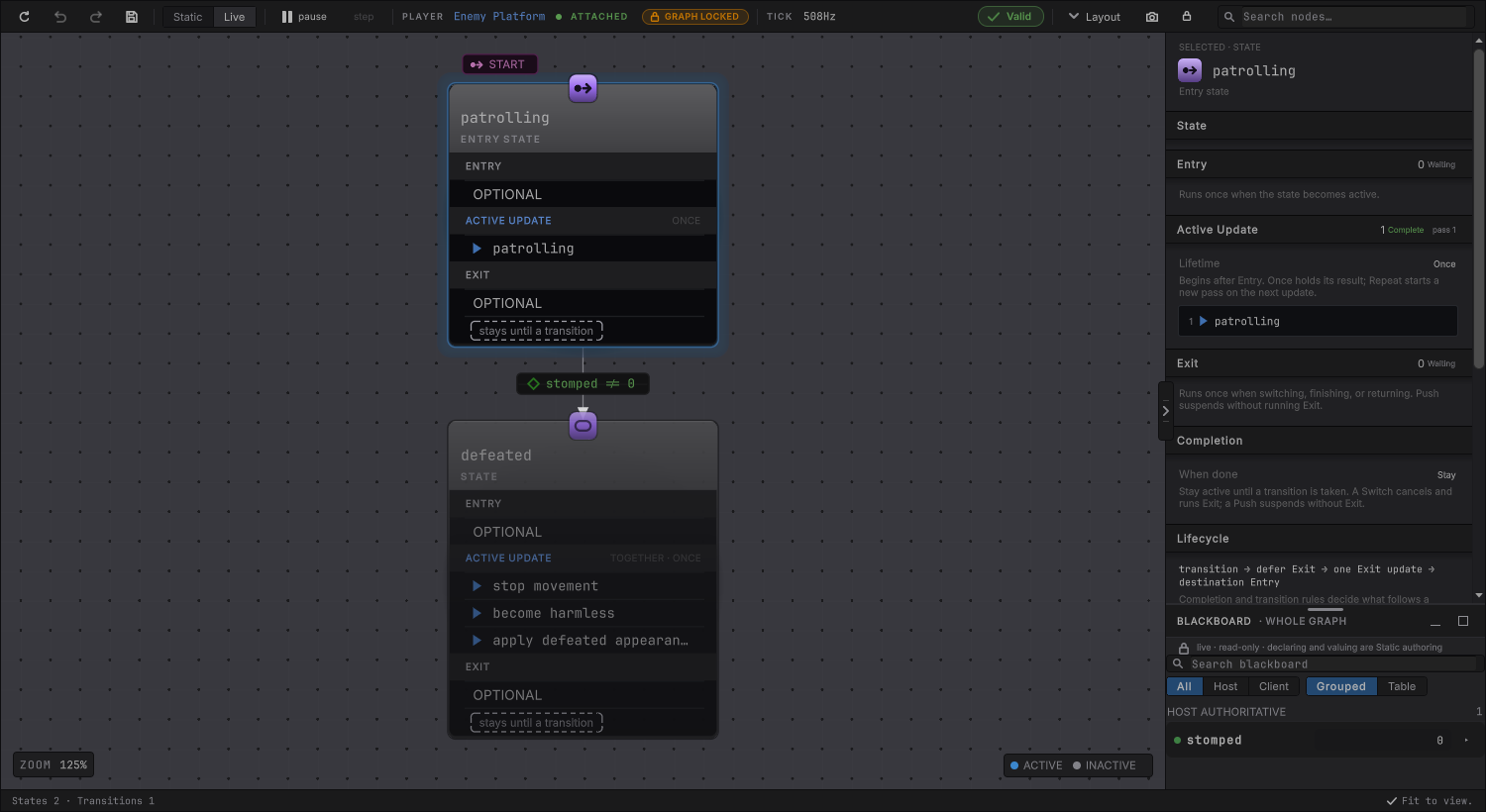
Read the colors
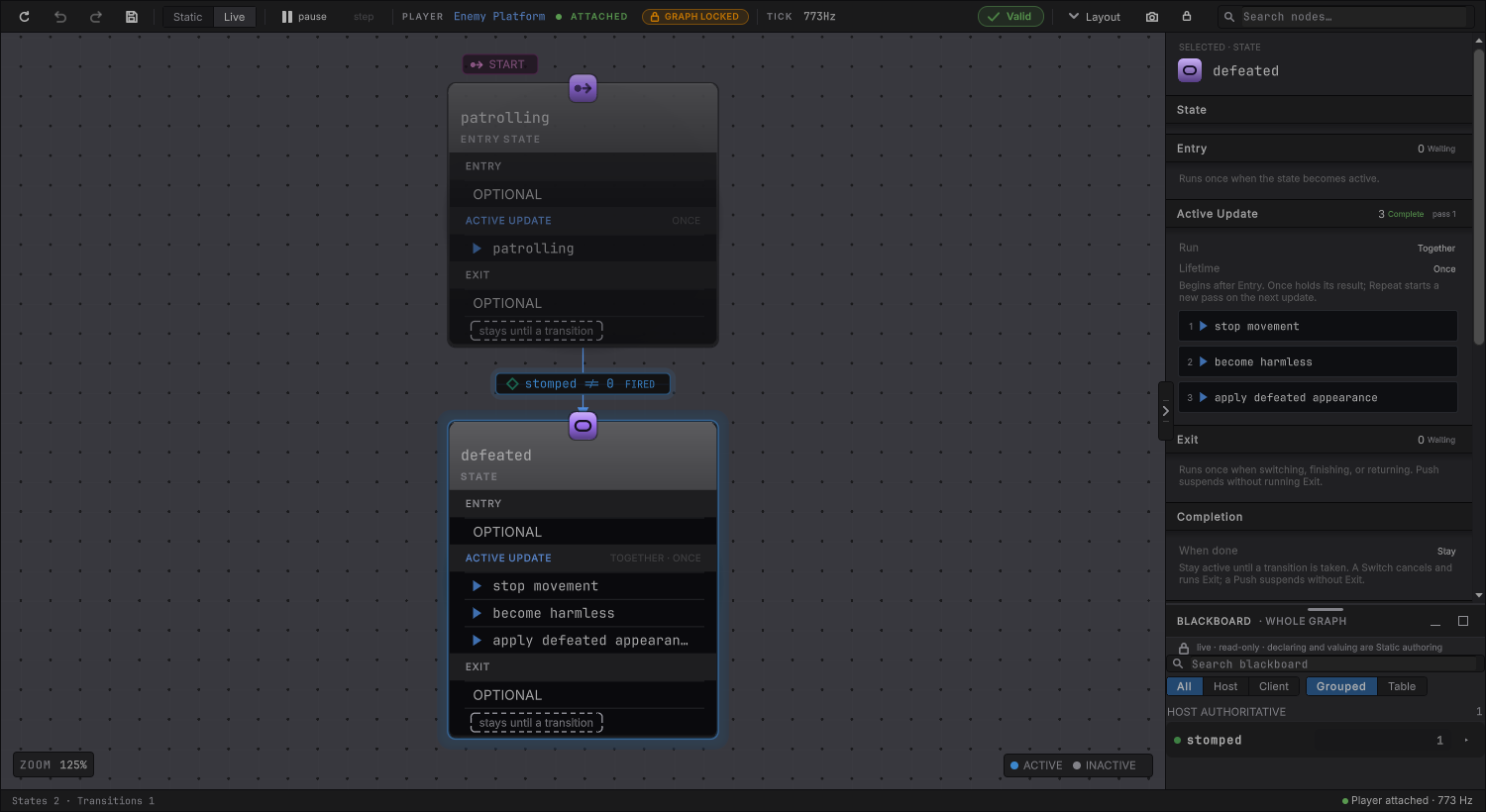
Section titled “Read the colors”The legend under the canvas is the whole vocabulary: RUNNING, SUCCESS, FAILURE, TARGET UNRESOLVED THIS EVALUATION, and IDLE. A state machine canvas swaps that legend for ACTIVE and INACTIVE, because a state is one or the other. Read the graph from the active node outward.
- The deepest node executed in the latest tick carries the active marker.
- Running ancestors keep Running without pretending they executed again.
- A node showing an older result is history, and the active marker is the only thing that says “this tick”.
- Graph runtime status names the active node, the current state, the last result, the last transition and which side owns the values. Its Active node row is a reading; the separate Focus → control above it centers the canvas on that node, which is what you want once the graph outgrows the viewport. Pending requests sits below the card whenever the graph is waiting on something external.
Open the values behind a decision
Section titled “Open the values behind a decision”-
Open Blackboard · Whole graph in the right rail. Its header reads “live · read-only · declaring and valuing are Static authoring”, and each row names who owns the value.
-
Read the ownership before you read the number. A value your own code owns instead of the graph is reported as (unavailable), because the editor observes the graph and the host owns that storage.
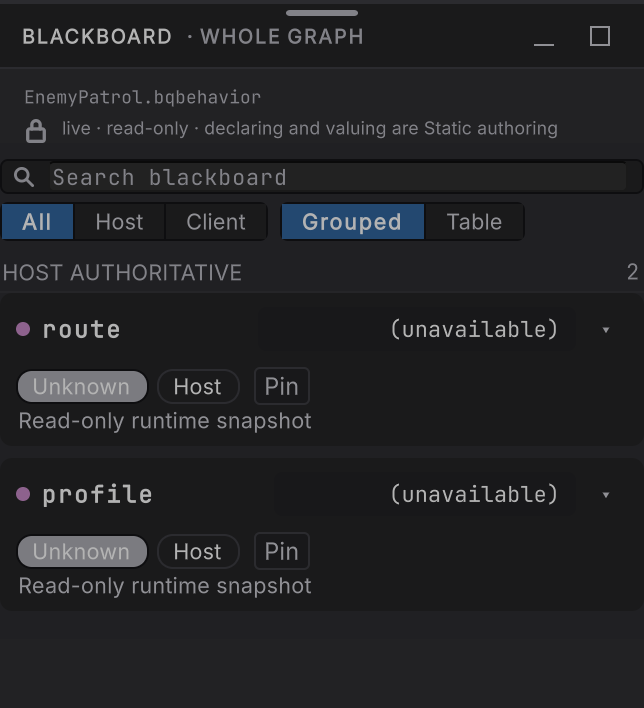
Live blackboard entries are read-only. A surfaced GameObject property or field can offer a Live editor when all of this is true:
- The target resolves.
- The value has a supported editor.
- The binding pushes to the member.
- The member is writable.
An accepted edit changes that running instance and leaves the graph file alone. Live editing walks every part of that editor and every way it can refuse.
Pause one follower and step it
Section titled “Pause one follower and step it”-
Choose pause in the toolbar, or press Space while the editor has focus. Space is bound in Live only.
-
Confirm the other enemy keeps patrolling while this one holds still. The pause belongs to the agent the editor is attached to, and the rest of the scene carries on without it.
-
Choose step, or press ., to grant one ordinary evaluation, then read the active node and its result.
-
Choose resume when you have what you need.

Per-follower pause and step apply to an ordinarily scheduled GameObject agent. When game code drives a disabled agent through TickOnce, the external scheduler owns advancement, so use Unity’s own Pause and Step instead. Entity graphs are inspected read-only and also use Unity’s global controls.
Find where progress stopped
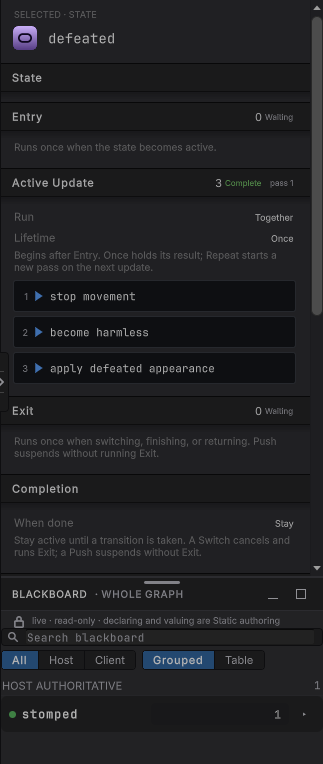
Section titled “Find where progress stopped”Step until the picture disagrees with what you expected, then read one level out.
When it goes wrong
| Symptom | Check | Fix |
|---|---|---|
| The editor stays on Static. | Confirm Play Mode is running and the selected host initialized. | Select an initialized running host. Switching the toolbar alone cannot invent a runtime target. |
| The wrong graph opens. | Count the Behavior Agent components on the selected GameObject. | Select the exact agent whose graph you want to watch. |
| Pause does nothing. | Read whether the agent is ordinarily scheduled or driven by game code through TickOnce. | Use Unity global Pause and Step when an external scheduler owns advancement. |
| A value looks stale. | Find the active marker and confirm which node executed in the latest tick. | Read the retained result as history and the marked node as now. |
| The attachment drops. | Look for a reset, a replacement object, a reimport, or runtime reinitialization. | Each of those changes identity. Select the still running target again. |
| An edited Live value did not survive Play Mode. | Confirm whether you edited the instance or the graph default. | Edit defaults in Static. A Live edit is deliberately scoped to the one running instance. |
- Common behaviors: six graph shapes from the sample games.
- Debugging: breakpoints, per-agent binding, and entity inspection.
- State machine controls reference: what each lifecycle section reports.
- Platformer sample: the scene this page attached to.