
Editor
Find your way around the graph editor, add work where it belongs, and keep a growing graph readable.
On this page
One window per graph, on a canvas that shows the decision instead of describing it. Open it with Window > Behavior & State > Behavior Tree Editor, or double-click a .bqbehavior asset.
The problem
Section titled “The problem”Platformer’s patrol started as three lines in a script and became a walk, a turn, a pause at each end, and a stomp that has to win over all of it. In a script that is a method with four flags. On the canvas it is four cards with an order you can read across the screen, and the one the enemy is running lights up while the game plays.
The editor exists so the shape of a decision is the thing you edit. Create a graph with Assets > Create > Behavior & State > Behavior Tree and the canvas opens empty, with no invented root.
Find your way around
Section titled “Find your way around”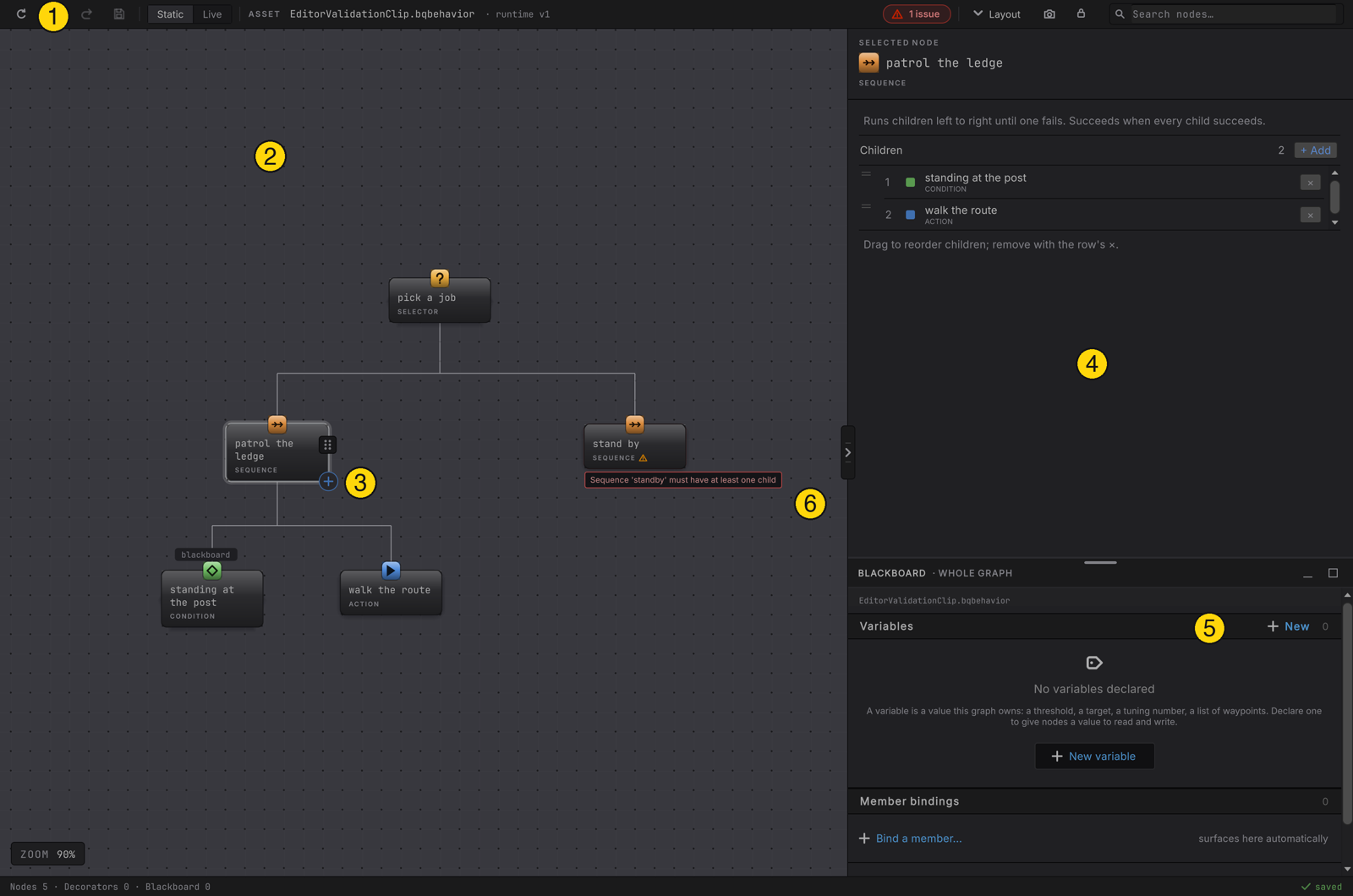
| Region | What it holds |
|---|---|
| 1. Toolbar | Reload, undo, redo, save, the Static and Live segmented control, the asset identity, the verdict chips, Layout, canvas capture, a pan and zoom lock, plus the node search field |
| 2. Canvas | Cards, decorator pills, wires, plus the status colors in Live |
| 3. Insertion handle | The hover affordance that opens the picker, covered in canvas and palette |
| 4. Inspector rail | The selected node or decorator, with its parameter cards |
| 5. Blackboard panel | The graph-wide variables, below the rail |
| 6. Validation reading | A red issue chip in the toolbar, a warning glyph on the card, and the message on the card, such as Sequence 'standby' must have at least one child |
Two more strips sit outside those six. The zoom readout is pinned to the bottom left of the canvas, with a slider, the 50%, 100%, 150%, and 200% presets, Fit, and 100%. The status bar reads Nodes N · Decorators N · Blackboard N on the left, counting what the open graph holds, with the save, conflict, validation, or Live reading on the right. EnemyPatrol.bqbehavior shows Nodes 4 · Decorators 1 · Blackboard 3.
Below a narrow window width the toolbar folds Layout, capture, and the lock into one ... overflow button. If the row is still short of room, it drops the Live TICK reading (the status bar keeps the rate) and then shows the verdict chips as glyphs only, with each chip’s words on its tooltip. Every control keeps at least the width of its own text.
Add work where it belongs
Section titled “Add work where it belongs”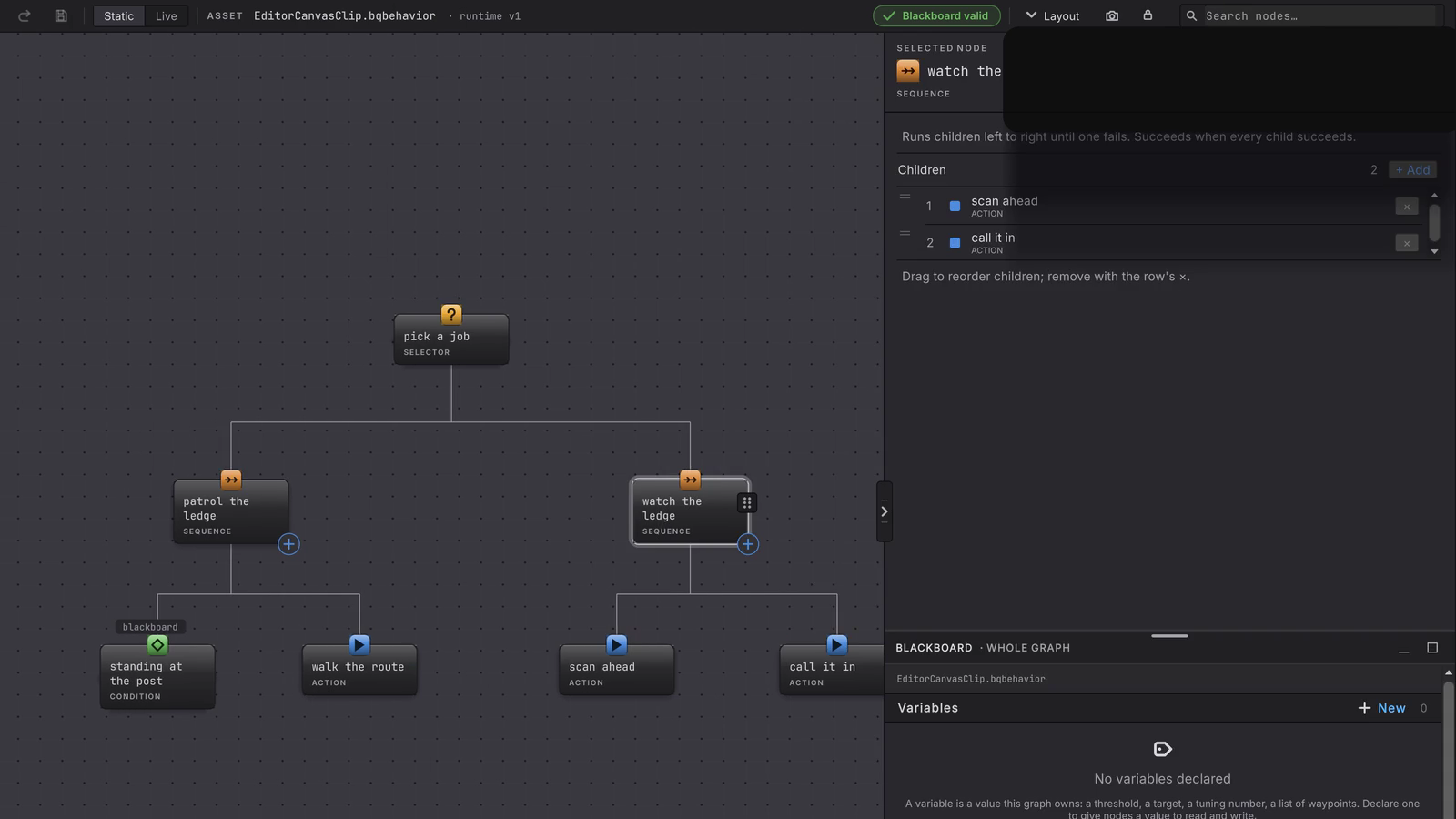
An empty behavior tree shows one affordance, add root behavior, and the hint beside it. Click it and the picker opens with the heading ADD THE ROOT BEHAVIOR, so the first choice you make is the shape of the whole tree.
After a root exists, two handles appear on hover.
- The handle at the bottom right of a card reads ADD CHILD and appends a child last under that card. On a leaf it reads LEAF ACTION and refuses, because a leaf owns no children.
- The handle on a wire reads ADD AFTER and adds a new sibling immediately after that child, under the same parent.
The picker groups its rows under COMPOSITES, DECORATORS, ACTIONS, CONDITIONS, and REFERENCES, and its field, search node types, filters by node type token. Canvas and palette walks the whole authoring loop.
Move what you already authored
Section titled “Move what you already authored”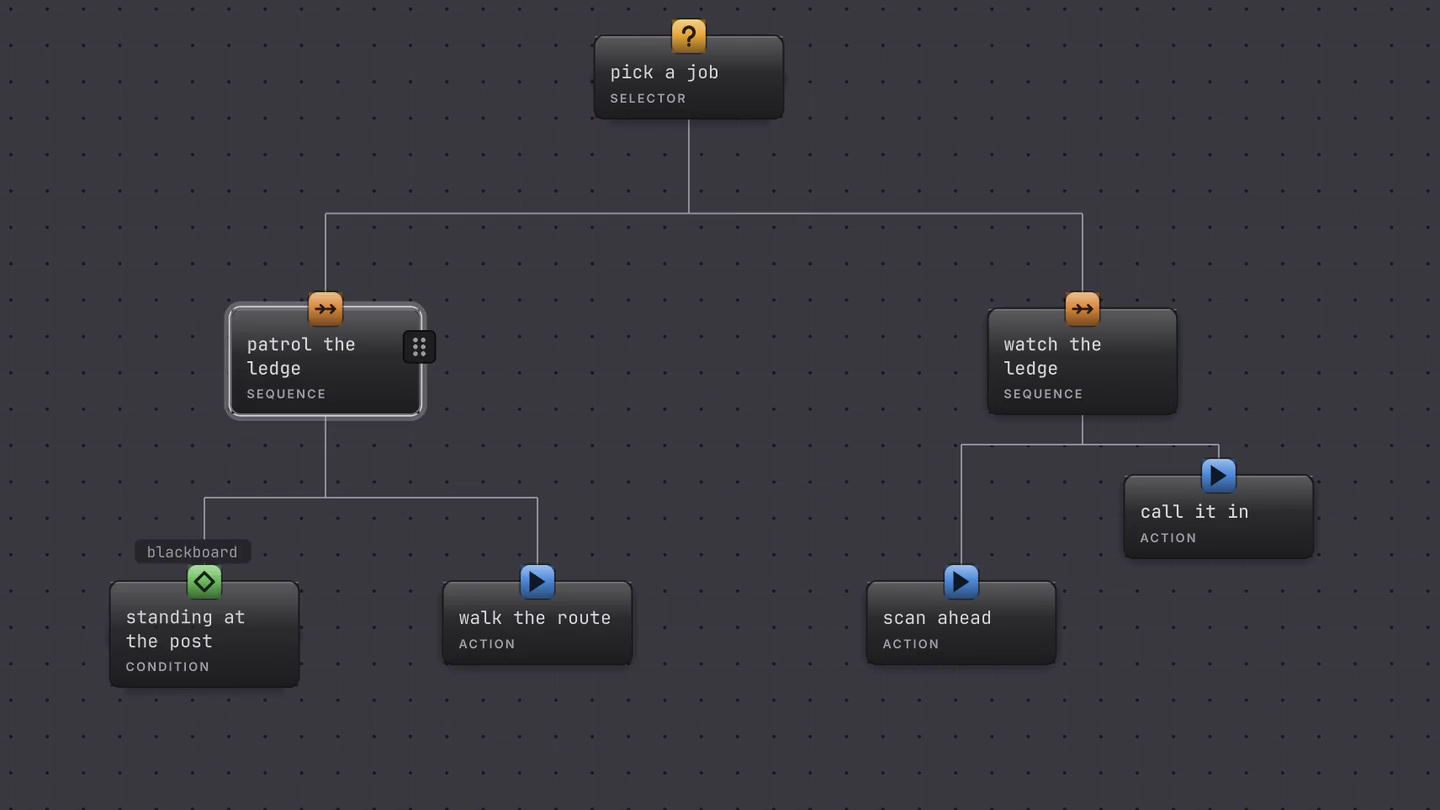
Drag a card’s grip onto another card to move that branch, with its descendants and their relative layout, under the new parent. The target chip tells you where it will land, Release to append after a named sibling or Release to append as first child. A card inside the branch you are dragging never lights up at all, because a branch cannot become a child of itself or one of its descendants.
Decorator pills drag too, into an exact revealed stack gap, on the same card or another one. Escape cancels either gesture and leaves the graph untouched.
Keep a growing graph readable
Section titled “Keep a growing graph readable”Child order is execution order, so the canvas is never only decoration. When a graph outgrows its screen, the delivered tools are search, layout, plus composition.
- Cmd/Ctrl+P focuses the search field from anywhere in the editor, and Cmd/Ctrl+F does the same unless a text field or another popover owns the key. Choose a result and the canvas selects and centers that node without changing zoom.
- Layout offers Auto re-layout, Vertical layout, Horizontal layout, Fit to view, and Recenter active node while a Live graph has one.
- A decision used in more than one tree belongs in its own graph, reached by a Subgraph node or a referenced machine.
DocumentationPatrolSubgraph.bqbehaviorin the Platformer project is that split at its smallest. - A long-lived mode with an inner decision belongs in a tree inside a state, which keeps each canvas about one thing.
Extraction earns its keep when it removes a duplicated decision. A folder of one-node subgraphs costs more than it saves. The editor ships no canvas groups and no minimap. There is no project-wide graph browser either, so use Unity’s Project window between graphs and the editor search inside one.
Saving and conflicts
Section titled “Saving and conflicts”Every accepted Static edit queues an atomic save of the graph file, one write at a time, keeping the newest pending snapshot when edits arrive faster than they land. Undo and redo belong to this editor’s own history: structure, parameters, child order, layout, plus any declaration an edit added. Unity’s global object undo is a separate stack.
Save and Cmd/Ctrl+S flush pending work and run the explicit import and bake path. If the file changes on disk while you have local work, autosave pauses and the toolbar shows Conflict with three deliberate choices: Reload discards local edits, Keep local overwrites the file, and Open diff shows both without changing either.
Before you blame the editor
| Symptom | Check | Fix |
|---|---|---|
| The canvas is empty and pressing keys does nothing. | Look for the add root behavior button on the canvas. | Click it. The hint beside it advertises a key that this release does not bind, so the click path is the one that works. |
| A new node landed somewhere unexpected. | Read which handle you used: ADD CHILD appends last, ADD AFTER adds a sibling after that child. | Drag the card by its grip, or reorder rows in the parent’s Children list. |
| Your node type is missing from the picker. | The picker lists the built-in node types only. | Author a project node kind in a graph file and configure it in the rail, which is where project schemas appear. |
| Typing a word from a description finds nothing. | The picker filter matches the node type token. | Type the type name, like repeat or selector. |
| The toolbar lost its Layout and capture buttons. | Read the window width. | Widen the window, or use the ... overflow button. |
Pick the page you need
Section titled “Pick the page you need”- Canvas and palette: the authoring loop, handles, drag and drop, layout.
- Inspector: the rail, identity, parameters, decorators, project-defined nodes.
- Search and validation: finding a node, reading the chips, leaving a note in the file.
- Reference Scan: repairing stale references across every graph in the project.
- Shortcuts: every key the window binds, and the preferences panel.
- Canvas capture: a PNG of the whole graph, for a review or a bug report.
Debugging has its own section: Live colors and the pages beside it.