
Canvas and palette
Place the first node, add work where it belongs, move a branch you already authored, and keep the canvas arranged the way you think.
On this page
The canvas is the authoring surface. Cards are nodes, pills are decorators, and the handles that appear when you hover a card are where new work goes in.
The problem
Section titled “The problem”A patrol that walks, turns, waits, and gives way to a stomp has an order, and the order is the behavior. Platformer’s EnemyPatrol.bqbehavior puts that order on screen: a Repeat at the top, a Sequence under it, and the walk and the wait as siblings you can see are siblings.
Getting there means placing a first node into an empty canvas, then adding the next one exactly where it belongs. Both have one correct gesture, and the editor has one honest wrinkle worth knowing before you start.
Start an empty tree
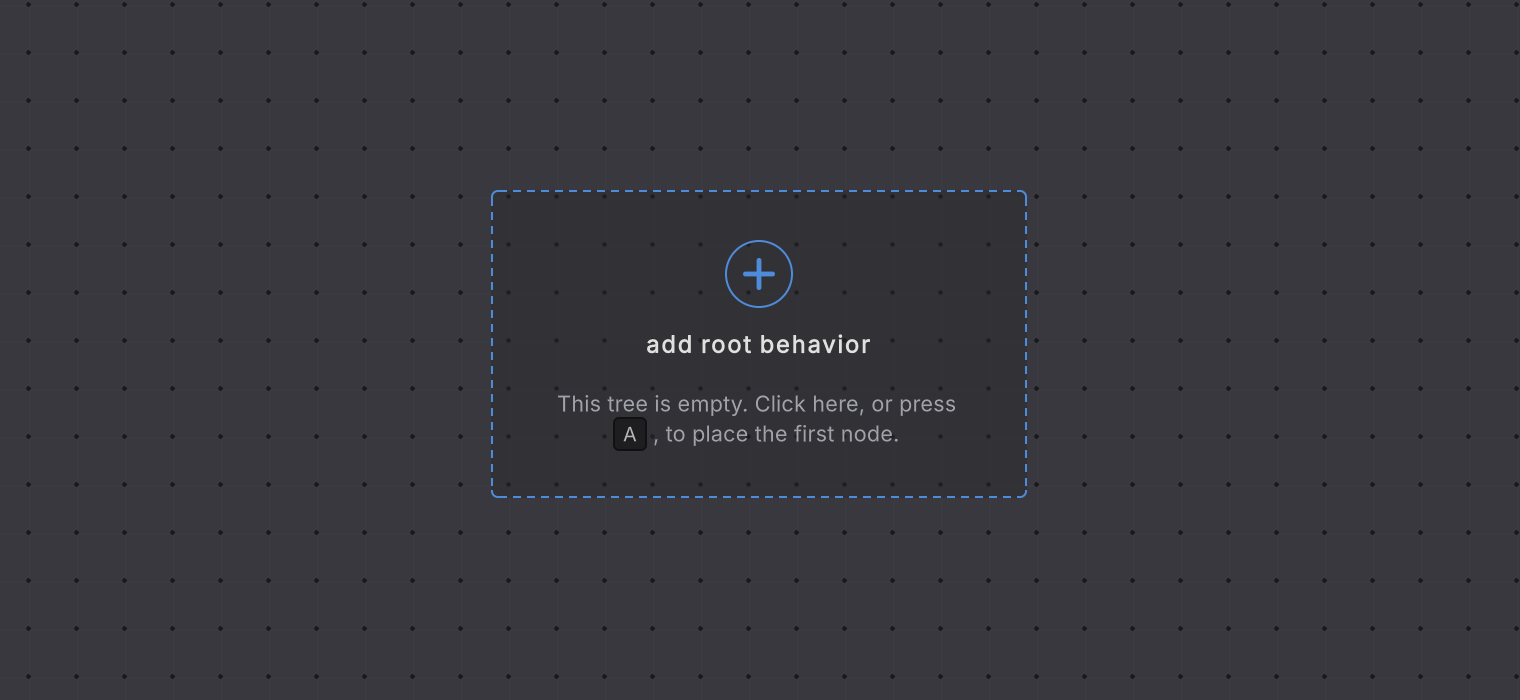
Section titled “Start an empty tree”A new behavior tree opens with no root. One button sits on the canvas, labeled add root behavior, with a hint beside it.
-
Create the asset with Assets > Create > Behavior & State > Behavior Tree. The asset appears in the folder you had selected.
-
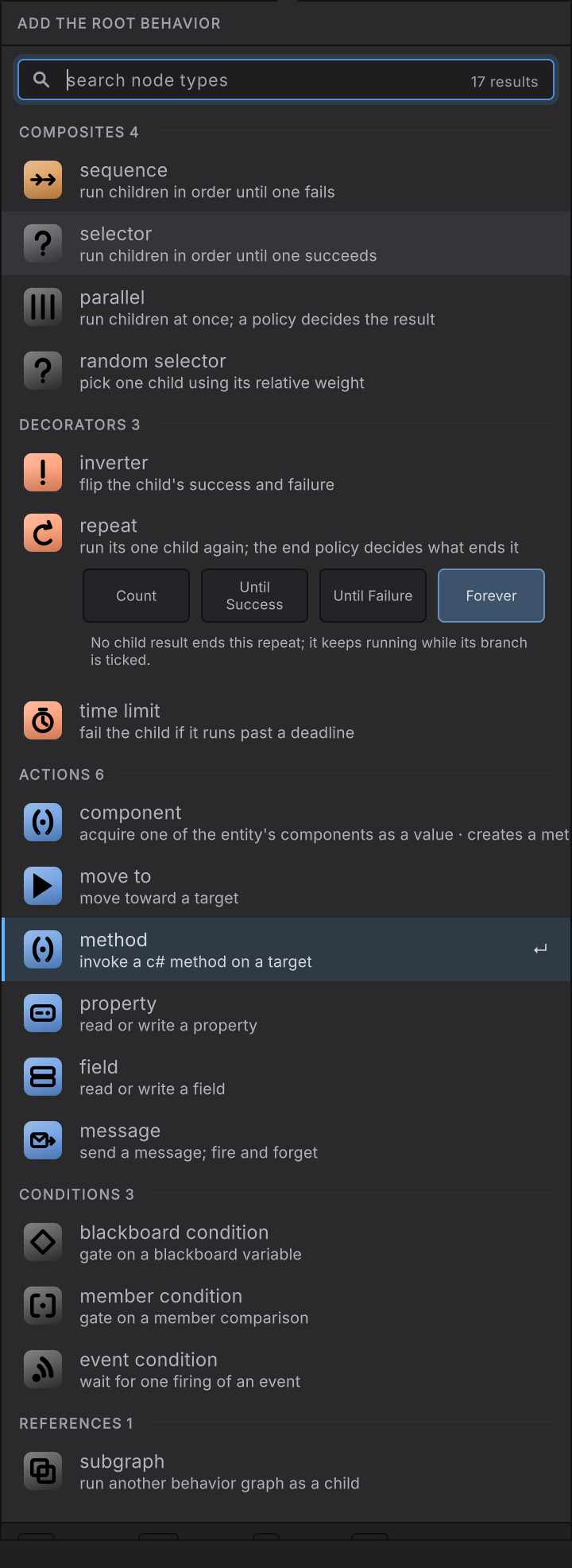
Open it and click add root behavior. The picker opens with the heading ADD THE ROOT BEHAVIOR, and the status bar reads
choosing the root behavior. -
Choose the root. A selector when the tree picks between alternatives, a sequence when it runs steps in order.
Add work to a tree that has a root
Section titled “Add work to a tree that has a root”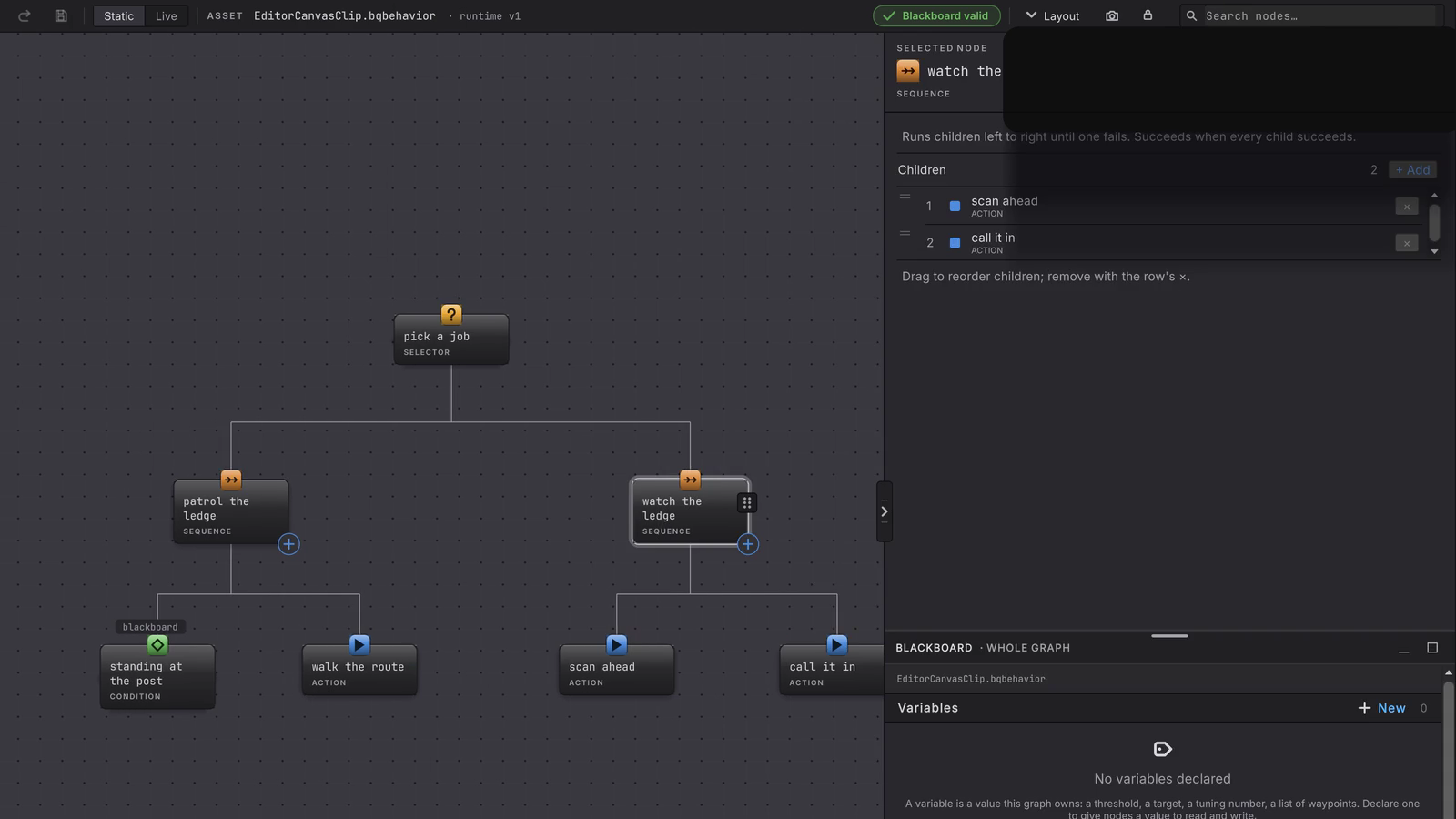
Two handles appear on hover, and they are not the same thing.
| Handle | Reads | What it does |
|---|---|---|
| Bottom right of a card | ADD CHILD | Appends a child last under that card |
| Bottom right of a leaf | LEAF ACTION | Refuses, because a leaf owns no children |
| On a wire, at the child end | ADD AFTER | Adds a new sibling immediately after that child, under the same parent |
ADD AFTER is worth reading twice. It adds beside the child you hovered, under that child’s parent. Nothing is spliced between the parent and the child.
Click a handle and it fills in while its picker opens a panel tick later, so the solid plus is the editor telling you the click landed.
The picker lists the built-in node types under five headings: COMPOSITES, DECORATORS, ACTIONS, CONDITIONS, and REFERENCES. Its field reads search node types and matches the type token, so rep finds repeat and a word from a description finds nothing. A row that cannot go where you opened the picker stays visible with its reason, leaf actions cannot have children.
Picking repeat offers its end policy inline, Count, Until Success, Until Failure, or Forever, with a line of consequence under each one.
Move a branch
Section titled “Move a branch”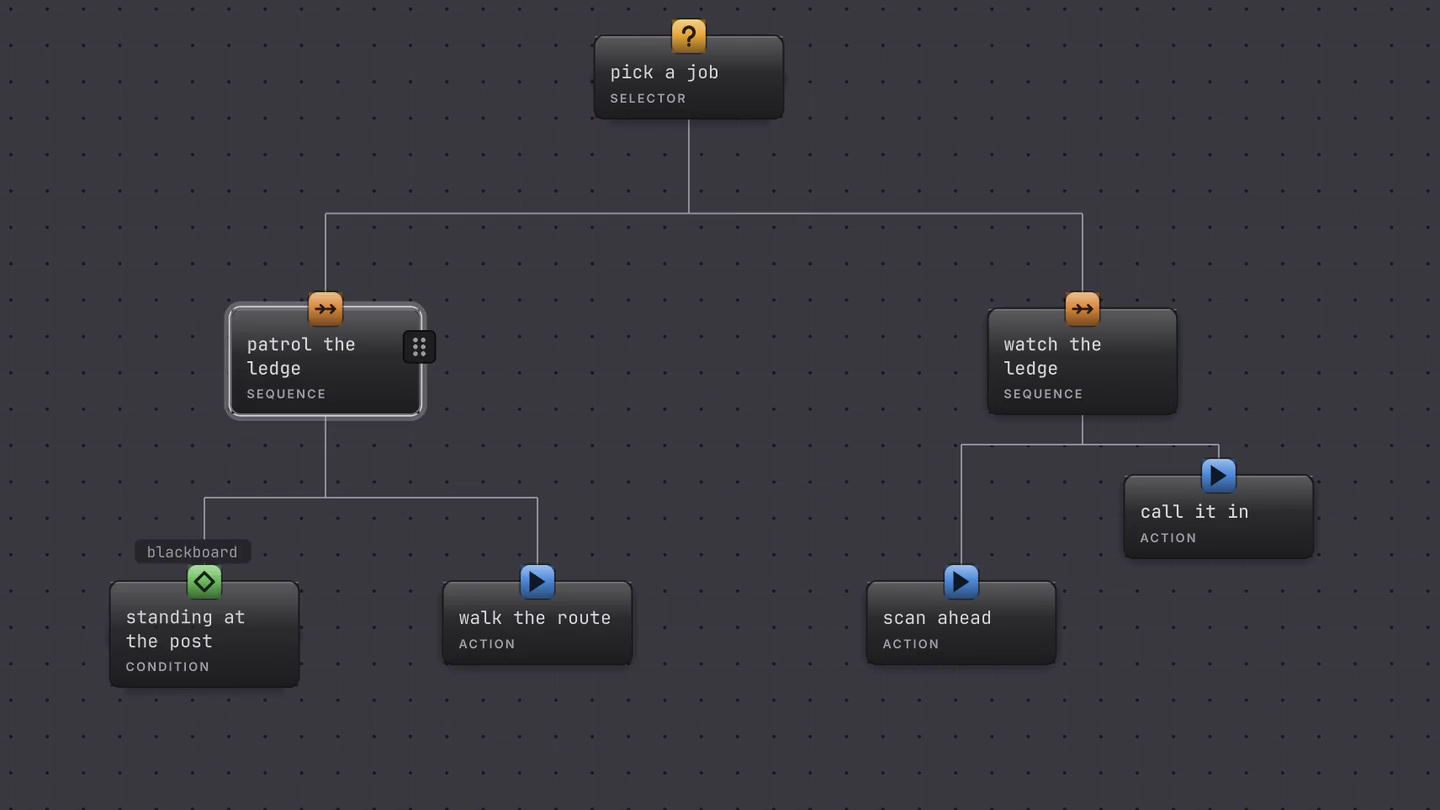
Every card carries a grip, tooltip Drag branch. Drag it and the whole branch lifts with its descendants.
-
Drag the grip. The hint reads
Dragging <name> + descendants · Drop on a composite · Esc cancels, and the lifted preview names the branch root and how many nodes are coming with it. -
Hover a destination card. The chip reads Release to append after a named sibling, or Release to append as first child, and the status bar reads
release commits one hierarchy edit. -
Release. The notice says Branch moved, and the subtree keeps its internal offsets.
A card inside the dragged branch never lights up as a target, and a blocked hover reads Cannot parent a branch to itself or one of its descendants with the status bar showing blocked target · graph unchanged. Escape cancels and leaves selection, layout, validation, and save state alone.
Decorator pills drag the same way, into an exact revealed gap in a decorator stack, on the same card or another one. The hovered gap reads Release here, and the gap you started from reads Release here · no change. A release anywhere else refuses with Only a revealed stack gap accepts the decorator.
Reorder children deliberately
Section titled “Reorder children deliberately”Child order is execution order, so moving a card around the canvas for tidiness changes nothing. Three things do change order.
- Drag rows in the selected composite’s Children list, which says so:
Drag to reorder children; remove with the row's ×. - Right-click the node and choose Move earlier or Move later.
- Press Cmd/Ctrl+Left or Cmd/Ctrl+Right with the node selected.
Arrange and navigate
Section titled “Arrange and navigate”The zoom readout sits at the bottom left of the canvas, with a slider, 50%, 100%, 150%, 200%, a Fit button, and a 100% reset. Layout offers Auto re-layout, Vertical layout, Horizontal layout, Fit to view, and Recenter active node, the last one enabled in Live. The lock button freezes pan and zoom, including the refresh-driven kind, until you switch it off.
When it goes wrong
| Symptom | Check | Fix |
|---|---|---|
| Pressing A on an empty canvas does nothing. | The hint advertises that key; no handler binds it in this release. | Click add root behavior instead. |
| The new node is a sibling, and you wanted a child. | Read which handle you used. ADD AFTER makes a sibling. | Use the card’s own ADD CHILD handle, or drag the new card’s grip onto the parent. |
| A card refuses to accept a drop. | Read the blocked hint. A branch cannot go under itself or its own descendant. | Drop on a card outside the dragged branch, or cancel with Escape. |
| A decorator drag keeps cancelling. | Confirm you released on a revealed stack gap. | Hover until the gap shows Release here, then release there. |
| Reordering cards on the canvas changed nothing. | Open the parent composite and read its Children list. | Drag the rows in that list. The canvas is layout only. |
- Inspector: the rail that configures the card you just placed.
- Search and validation: finding a node and reading the verdict chips.
- Your first behavior tree: this loop end to end, on the Platformer enemy.