
Attach and inspect
Attach Live to the exact agent you mean, read what the toolbar says about it, and open the values behind the decision it just made.
On this page
Attachment is exact. You select one agent, the editor opens that agent’s graph, and it never quietly hops to a nearby candidate that looks similar.
The problem
Section titled “The problem”Platformer’s Enemy Platform carries two Behavior Agent components: one runs EnemyPatrol, the other runs EnemyStateMachine. Dungeon Heist has several guards, each running its own instance of the same graph. In both cases “open the enemy’s graph” is ambiguous, and a debugger that guesses is worse than one that asks.
Attach to one agent
Section titled “Attach to one agent”-
Press Play. Attachment needs a running, initialized agent on an active object.
-
Select the object, or select the exact Behavior Agent component when the object owns several. Selecting the component is always exact. Selecting the object works only when exactly one of its agents is eligible.
-
Read the toolbar. The mode control shows Live, the identity names the follower you hold, and the attachment word reads ATTACHED.
There is no list to pick an agent from, by design. You select the agent and the window follows that one attachment until its identity changes.
What the toolbar is telling you
Section titled “What the toolbar is telling you”| Reading | Meaning |
|---|---|
| ATTACHED | Bound to a live runtime |
| DETACHED | No active binding |
| LOST | The runtime is no longer reachable |
| GRAPH LOCKED | Live cannot author the graph. Eligible value fields still edit the attached instance |
| Tick | The effective tick rate in Hz, sampled from the agent’s own ticked frames |
The status bar keeps the same story in words, reading State ticking · Tick 60.0 Hz for a behavior tree and Player attached · 60 Hz for a state machine. The follower identity is clickable, and its popover carries a Follower id field with View Id and View Selected. In this release neither button changes the attachment: Unity selection is the control, and the popover reports the follower you already hold.
Attachment is pinned
Section titled “Attachment is pinned”A Live document is pinned to the runtime you selected: the component, its runtime generation, the graph asset, the executable fingerprint, and the follower key. Reinitializing, resetting, replacing the graph, or reimporting the asset with different executable content changes that identity, so the document detaches rather than showing one graph beside a different executable.
When an attachment is lost, the graph stays open: the canvas shows a Detached card, the toolbar reads LOST, every member card clears its runtime values, and the Blackboard values rows read cleared. Selecting the same still running target attaches afresh.
Open the values behind a decision
Section titled “Open the values behind a decision”With nothing selected on the canvas, the rail carries the attached agent’s values in two sections, and they behave differently on purpose.
Member binding, marked surfaced, holds one card per member binding the graph surfaces. A card shows the value the graph received and the value on your component, states its health, and turns into an editable field when the binding may write the member.
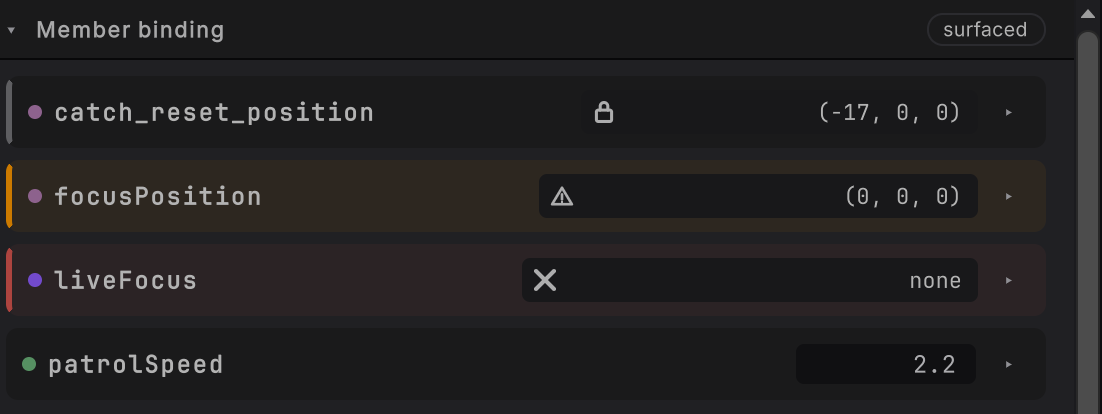
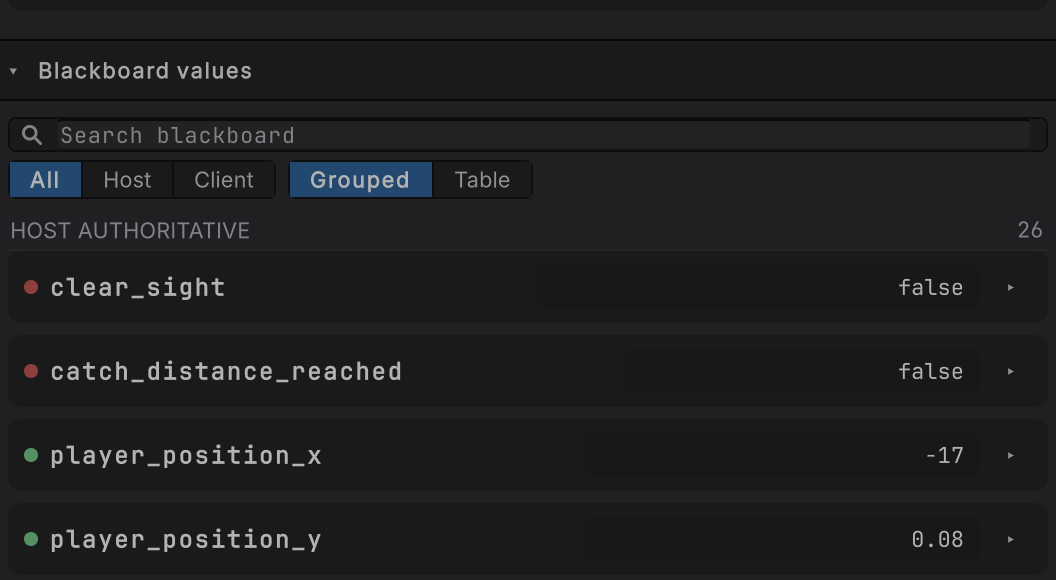
patrolSpeed takes an edit. The other cards’ icons match their chips: lock for read only, triangle for unavailable, cross for incompatible. Live editing reads every part of a card and every refusal.Blackboard values below it is a read-only snapshot of the whole blackboard. Each row’s details arrow opens the words Read-only runtime snapshot and a Pin toggle, so the rows you care about stay at hand. It is the place to confirm that an input changed before the branch evaluated.
A Live edit reaches the one attached agent, runs the member’s setter once, and reaches the graph at its next evaluation, or at the next step while this follower is paused. It never touches the graph file, the document’s saved state, or undo.
Change one thing
Section titled “Change one thing”Read the rail while it runs
Section titled “Read the rail while it runs”- Graph runtime status names the active node, the current state, the last result, the last transition, and which side owns the values.
- Pending requests appears whenever the graph is waiting on something external, and names the request and the frame.
- Selected node details carries that node’s own last result and its live target reading.
- Recent transitions and events gives bounded context around the current snapshot.
Repainting the Live view observes only. A refresh never invokes a member, evaluates the graph, writes a slot, dirties the file, or advances a tick.
When it goes wrong
| Symptom | Check | Fix |
|---|---|---|
| Selecting the object opens nothing. | Count the eligible agents on it. | Select the exact component. An ambiguous object attaches to nothing on purpose. |
| The toolbar says LOST. | Look for a reset, a graph replacement, a destroyed object, or a reimport. | Each of those changes identity. Select the running target again. |
| The follower popover will not switch agents. | That is this release: the buttons report the follower you hold. | Select the other agent in the Hierarchy instead. |
| A blackboard row will not take an edit. | Open the row’s details arrow: it says Read-only runtime snapshot. | Edit the authored default in Static, or use a two-way member card for an instance edit. |
| A member card will not take an edit. | Open its details and read the chip: read only, unavailable, or incompatible, each with its reason. | Live editing lists what each refusal means and what to change. |
| An edit was accepted and nothing changed yet. | Read the toolbar: resume in place of pause means this follower is paused. The rail’s Evaluation section reads Waiting for Step. | Step once and the graph reads it, or resume. |
- Pause, step, breakpoints: holding this agent still.
- Live editing: the value rules in full.
- Entity debugging: the same window with a different set of powers.